

A common task that architects often undertake is scheduling apartments for residential projects. The generally accepted method for modelling residential buildings uses model groups for each apartment layout. In this workflow, the model groups contain only the internal partitions and exclude the party walls and structure. Depending on your preference, rooms can either be placed within the model group or outside of the model group. Since scheduling every single room within the apartment is generally unnecessary, the internal partition walls can be set to ‘non-room bounding’, and a single room placed within the apartment.
The problem
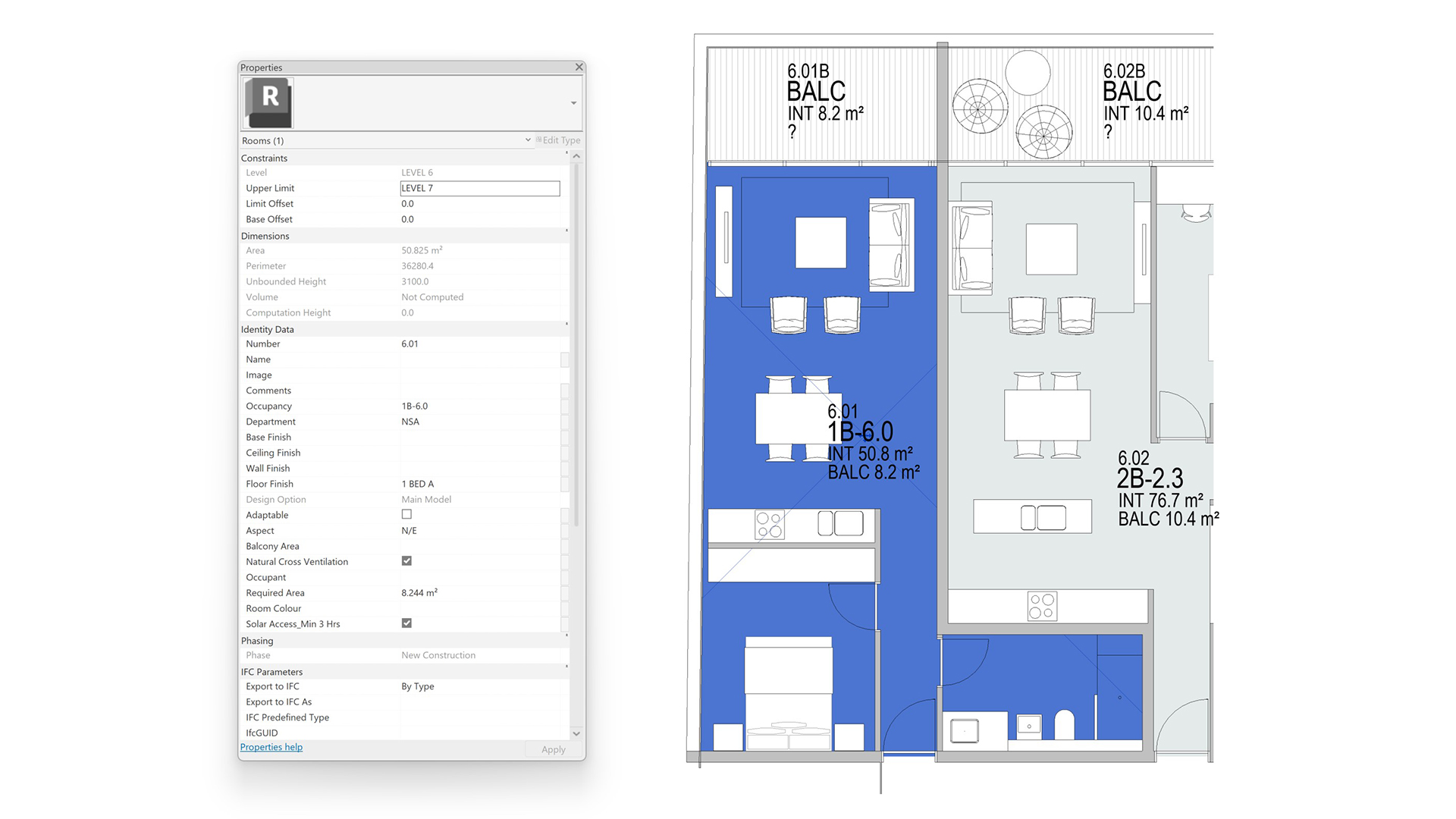
The problem arises in that there is no association between the model group and the room. Ideally, we want to keep these two elements synchronised. For example, if the model group is named ‘1B-6.0’, the room’s ‘occupancy’ parameter should also be updated.

Dynamo automation
To solve this issue, Parametric Monkey has developed a Dynamo graph, available as part of our Dynamo Package Development service. Before running the graph, ensure all rooms have the correct volume by adjusting the limit offsets. If a room overlaps with another, the graph cannot determine which room the model group belongs to. The ‘Room.AdjustUpperLimit‘ node can help to adjust the room heights if required. Additionally, ensure that the model group’s origin point is located within the model group. Otherwise, this will cause errors in the synchronisation process.

To run the graph:
- Select the room and model groups to modify (#1). Selected elements that are not rooms or model groups are automatically filtered out.
- [Optional] Define a model group name filter (#2). Only model groups whose name starts with this value will be included. If all model groups are to be used, keep empty.
- Define the room parameter filter (#3).
- [Optional] Define the room parameter value filter. Only rooms whose parameter value starts with this value will be included. If all rooms are to be used, keep empty.
- Define the room parameter to modify (#4). This must be a Text parameter, and additionally, if the rooms are nested within a model group, ‘Values can vary by group instance’ must be selected.
- Press Run.
Computational logic
The graph collects all rooms and model groups and filters them. Next, the model group’s location is extracted, and a containment test is undertaken to pair it with a room. Note that if the insertion point of the model group is outside of its bounding box, the element will be excluded and a warning returned. In this scenario, problematic model groups should be updated and the graph re-run. Once a room/model group pairing is achieved, the model group’s parameter value is read and pushed to the room’s parameter.
Conclusion
To find out more about our Dynamo Package Development service, drop us a line and discover how we can automate your Revit workflows.






