
Revit’s Project Browser enables views and sheets to be sorted and grouped based on your organisation’s standards. One common approach to Project Browser organisation is separating documentation from working views. Whereas working views enable users to work freely, documentation views are typically ‘locked down’ via a view template to ensure views appear as desired when printing sheets.
Manually create working views
There are generally two ways to create working views:
- Duplicate an existing view (View > Create > Duplicate View) – With this method, only a single view can be duplicated at any one time. Additionally, the view name will be suffixed with “Copy 1”.
- Create new plan view (View > Create > Plan Views > Floor Plan) – This method enables multiple views to be created but will only work on plan views. The view name will be suffixed with “(1)”.
The problem with both options is that most organisations prefer to rename working views so that the prefix or suffix identifies who created the view, for example, “Level 01_PW”. Depending on how many working views you have, this can be a time-consuming process.
Creating working views with Dynamo
To solve this issue, Parametric Monkey has developed a Dynamo graph, which is available as part of our Dynamo Package Development service. The graph enables multiple views in the Project Browser to be selected, duplicates the views, and renames the view with a predefined prefix or suffix. Additionally, a view template can also be applied.
Before running the graph, select the views to be duplicated in the Project Browser. Note that if a view template is to be applied, it may be preferable to select only views with a matching view type (floor plan, ceiling plan, elevations, etc.) so that the correct view template is assigned to the views. The graph can be run multiple times if needed.
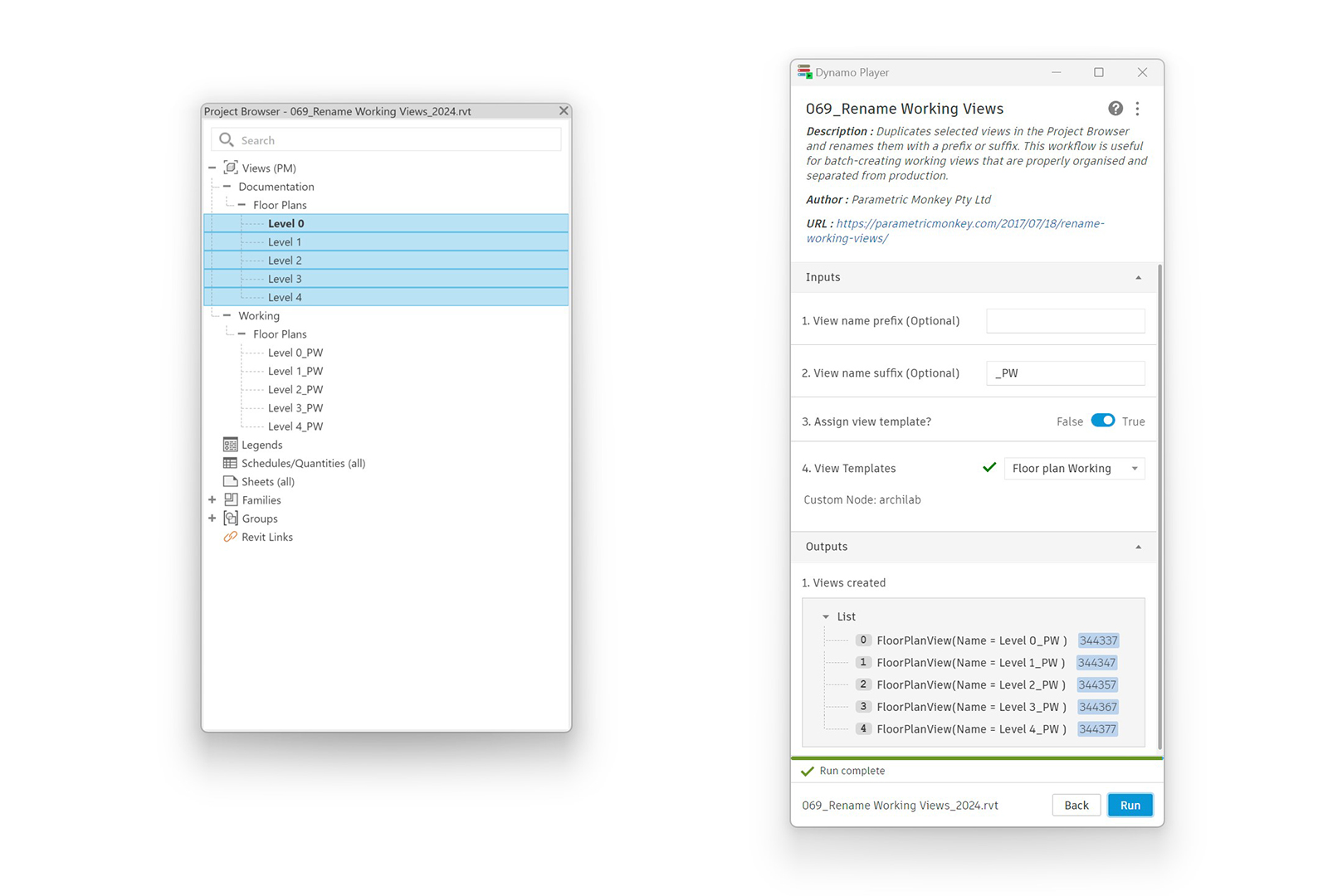
To run the graph:
- [Optional] Define the prefix to be applied to the view name (#1). This value can be left blank if desired.
- [Optional] Define the suffix to be applied to the view name (#2). This value can be left blank if desired.
- Specify if a view template should be applied (#3).
- Define the view template to be applied to the views (#4).
- Press Run.
Conclusion
Setting up working views is often a necessary part of the documentation process. However, with automated routines such as this one, this process can be easily performed while ensuring consistency. To learn more about our Dynamo Package Development service, drop us a line and discover how we can automate your Revit workflows.







2 Comments
German Otto Bodenbender
Hi, this is really interesting and I have really similar challenges in our office.
Dont you think that filtering the all the views placed on sheets will also help a lot to avoid people working on documentation views?
Kind regards,
paulwintour
Hi German. Yes that is the point. I think if you are modelling it is best that you do this in your working view. However if you need to add annotations, tags, dimensions, etc, only then should you be in the sheet views.