

Construction Documentation drawings are often broken down into sheet sets, also known as drawing series, to align with various trade packages. While the naming convention of sheet sets may vary slightly from organisation to organisation, typically, there will be a dedicated set for Demolition, General Arrangement (GA) Floor Plans, Reflected Ceiling Plans (RCP), etc. Each set receives a unique drawing number prefix so that drawings are grouped and easily identified.
The problem
At the beginning of a project, the project team will generally focus on GA Floor Plans, Sections, and External Elevations. However, as the project progresses, the team will need to set up all the other sheet sets. Some organisations create placeholder views in their Revit template to assist this process. The limitation of this approach is that the placeholders are often just for a single level to indicate the naming convention to be adopted. Rarely do they cover all of the views needed.
Creating sheet sets typically involves duplicating existing views (View > Create > Duplicate), renaming the view, and assigning the associated view template. Most sheet sets can be derived from the GA Floor Plans; for example, the Concrete Setout, Partition Setout, and Floor Finishes plan can all be based on the GA plans, etc. Reflected Ceiling Plan, however, cannot be created by duplicating a floor plan and must be created differently (View > Create > Plan Views > Reflected Ceiling Plan). Depending on the size of your project, this process could take days.
Creating sheet sets with Dynamo
To solve this issue, Parametric Monkey has developed a Dynamo graph, which is available as part of our Dynamo Package Development service. The graph creates sheet sets based on selected views in the Project Browser. For example, it will take the General Arrangement (GA) floor plans, duplicate the views, rename them, and assign a view template to create the Floor Finishes Plans. Multiple drawing sets can be created simultaneously; the only limitation is that view templates will not be applied, as each sheet set will often need its own view template. Ceiling plans can also be created from floor plans and vice versa. This graph can be combined with the Place views on sheet graph to complete the sheet set process.
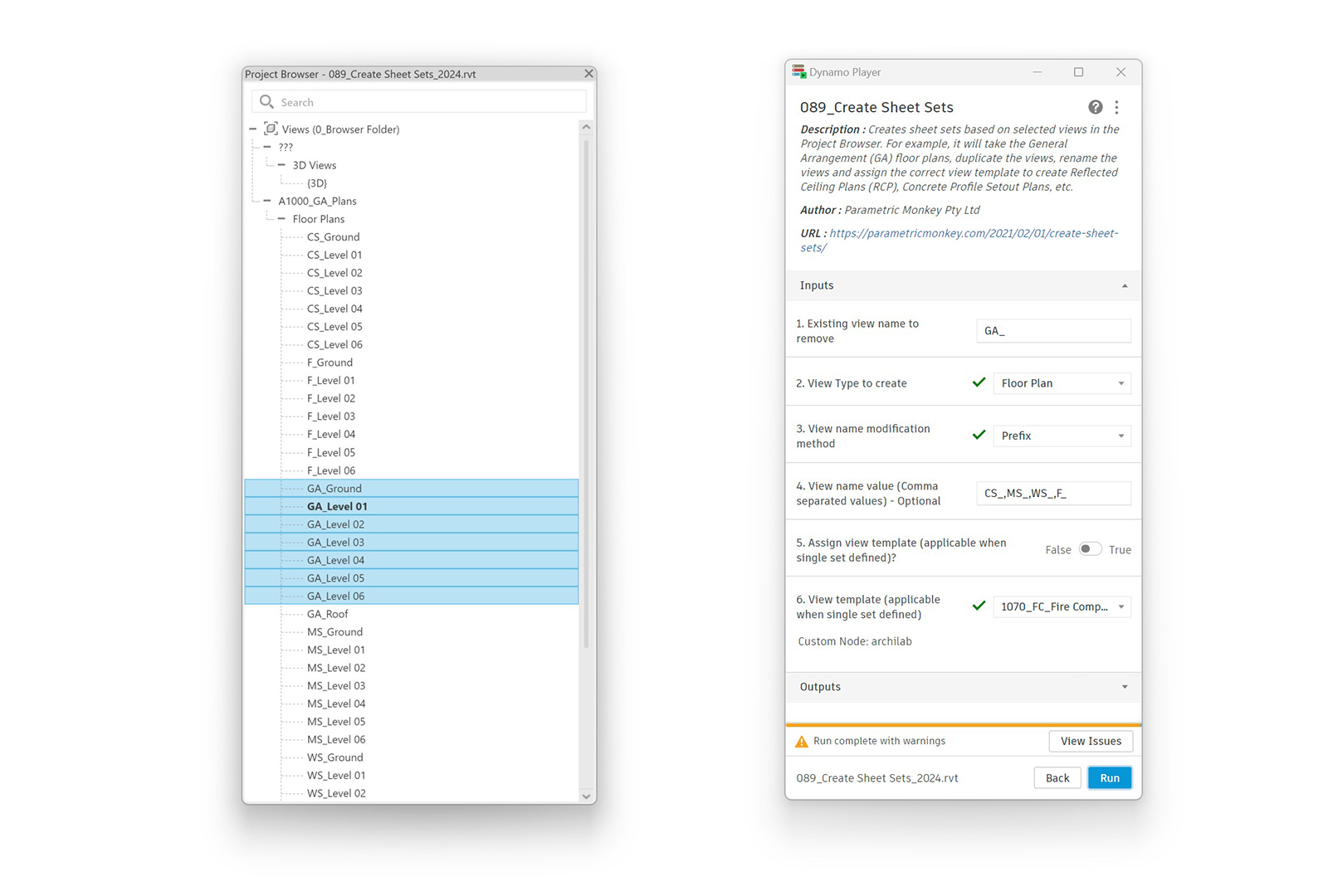
To run the graph:
- In the Project Browser, select the views to be duplicated. If no views are selected, an error will be returned.
- Define the text in the selected views’ name to be removed when creating the new views (#1), for example, “GA_”.
- Specify the view type to create (#2). Only floor plans or ceiling plans can be created.
- Specify the view name modification method (#3). View names can either be modified with a prefix or suffix.
- Define the view name values (#4). This can be a single value, for example, “RCP_”, or multiple comma-separated values if multiple sheet sets are to be created.
- Specify if a view template should be applied (#5). This setting is only applicable if a single view name has been specified in input #4.
- Select the view templates to be applied (#6). This setting is only applicable if a single view name has been specified in input #4.
- Press Run.
If prompted, choose if you would like to rename the corresponding level and views. Typically, this is ‘No’. If a view already exists with the same name, these views will be skipped to avoid duplicates and returned separately.
Conclusion
Setting up sheet sets is a necessary evil. However, with the emergence of automated routines, such as those afforded by Dynamo, it is possible to significantly reduce the time needed to complete the task – resulting in improved efficiency and cost savings. To learn more about our Dynamo Package Development service, drop us a line and discover how we can automate your Revit workflows.






